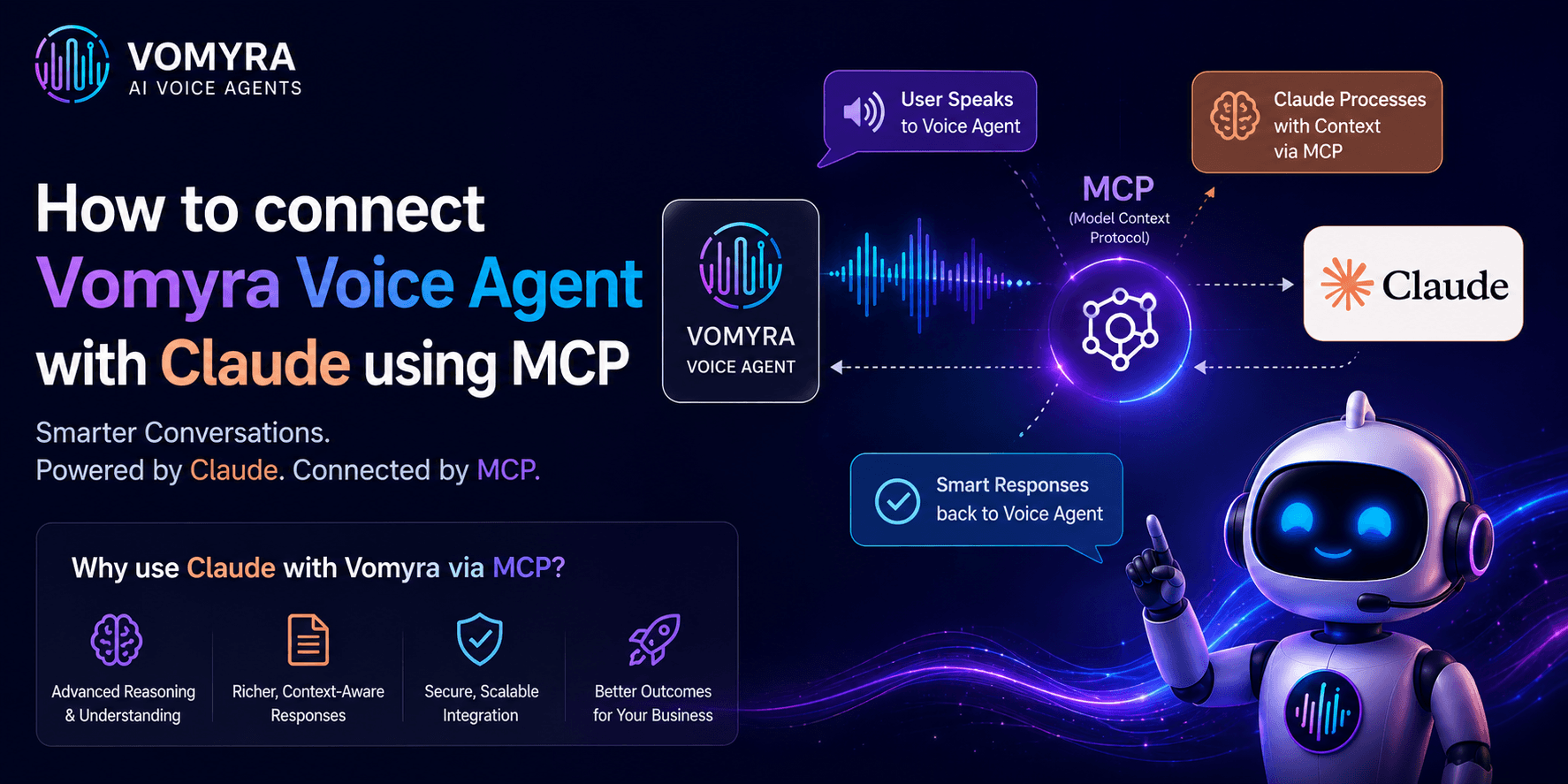
Most people use Claude for writing, research, or coding help inside a chat window. Far fewer realize that Claude can also reach outside its own interface and control real-world tools, including a phone-based voice agent, through the Model Context Protocol.
Once that connection is in place, asking Claude to trigger an outbound call, check on a booking, or pull recent call activity becomes as simple as typing a sentence. This guide walks through what that setup looks like in practice, building on our earlier technical breakdown of how Vomyra’s MCP server works, and covers what to expect once the connection is live.
Why Connect a Voice Agent to Claude in the First Place
A voice agent on its own is already useful: it answers calls, books appointments, and handles routine customer questions without a human on the line. Connecting it to Claude through MCP adds a second layer on top of that. Instead of logging into a dashboard to check today’s call volume or manually triggering a follow-up call, a business owner or operations team member can simply ask Claude in plain language and get the same result.
This matters most for teams that already use Claude for other parts of their work, drafting messages, reviewing data, planning campaigns, and would rather not switch between five different tools to manage a single workflow. Once the voice agent is reachable through MCP, Claude becomes a single place to both reason about a task and act on it.
What You Need Before Starting
A few things need to be in place before the connection works:
First, an active Vomyra account with at least one voice agent already configured for a business use case, since the MCP connection exposes that agent’s capabilities rather than creating a new one from scratch. Second, the Claude Desktop application installed on a computer, since MCP connections are set up there rather than through the regular web chat interface.
Third, access to Vomyra’s MCP server details, specifically the connection address the platform provides for this purpose, along with any authentication credentials tied to the account. Fourth, a Claude plan that supports MCP connections, since this capability is tied to certain subscription tiers rather than being available on every free account.
Setting Up the Connection Step by Step
The overall process is shorter than it sounds, and most of it only needs to be done once.
Begin by opening the Claude Desktop application and locating the developer or settings section, where connected tools and external servers are managed. Inside that section is an option to edit the configuration that controls which outside servers Claude is allowed to talk to. Opening that configuration reveals a simple structure where each connected server is listed by name, along with the address Claude should use to reach it.
Add a new entry for the voice agent, giving it a clear, recognizable name and pointing it to the connection address supplied inside the Vomyra dashboard. If the account requires an access token or API key for authentication, that credential gets added alongside the connection address so that Claude can prove it is authorized to use the agent’s tools rather than just reaching the address anonymously.
Save the configuration and fully restart Claude Desktop, since most MCP connections only get picked up when the application starts fresh rather than while it is already running. After restarting, opening a new conversation and checking the available tools menu should show the voice agent listed as a connected source, confirming the handshake between Claude and the Vomyra MCP server completed successfully.
For teams that prefer not to edit configuration files directly, newer versions of Claude Desktop also support packaged extensions that install with a single click. Where this option is available for a given integration, it removes the need to handle connection details manually and is generally the simpler path for non-technical team members.
What Becomes Possible Once Connected
With the connection active, Claude can be asked to carry out tasks that previously required logging into a separate platform. A team member could ask Claude to place a follow-up call to a specific customer and confirm a delivery time, or to pull a summary of how many calls the agent handled that day and what the most common requests were.
Because Claude can combine this with its other capabilities, a request like reviewing a list of leads from a spreadsheet and then triggering calls to the ones marked as high priority becomes a single conversation rather than a multi-step manual process.
The shape of this varies by industry. A restaurant team might ask Claude to call a supplier to confirm a delivery slot while the voice agent handles incoming customer orders on its own. A real estate office might use Claude to review the day’s property inquiries and have the voice agent call back the ones that came in after hours.
A clinic could ask Claude to check how many appointment reminders went out that morning and which ones were not picked up, then trigger a second round of calls for the missed ones. In each case, the voice agent does the calling, while Claude handles the reasoning about who to call and why.
This is also where the underlying architecture matters. A Vomyra Ai Voice Agent connected through MCP does not hand Claude unrestricted access to every business system at once; it exposes a defined set of actions, placing a call, checking a call’s status, retrieving a transcript, that Claude can use within the boundaries the account owner has set.
Anything outside that defined set simply is not available to Claude, regardless of how a request is phrased.
Local Setup vs Hosted Connection

There are two general ways an MCP connection like this can run. One approach keeps everything local, with a small program running directly on the same computer as Claude Desktop. The other approach, which is how most people connect to Vomyra, uses a hosted connection where the voice agent’s MCP server runs on Vomyra’s own infrastructure and Claude simply reaches out to it over a secure connection whenever needed.
The hosted approach is generally the better fit for a business voice agent, since it does not depend on a particular computer staying on, and it allows multiple team members to use the same connection from their own devices without each person needing to run anything locally.
Handling Permissions and Data Access Carefully
Because this connection allows Claude to take real actions, like placing an actual phone call, it is worth being deliberate about who has access to it. Authentication credentials used in the configuration should be treated the same as any other sensitive login information, not shared casually or left in a document that many people can open.
On the Vomyra side, scoping the connected account to only the actions actually needed for this workflow, rather than granting broader access than necessary, keeps the integration safer if a credential is ever exposed.
It is also worth checking, periodically, what activity has come through this connection, since having a record of which calls were triggered through Claude versus through the regular dashboard makes it easier to spot anything unexpected early.
Common Issues and How to Resolve Them
If the voice agent does not appear in Claude’s tools list after setup, the most frequent cause is a small formatting mistake in the configuration, a missing character or an incorrectly placed entry, which prevents Claude from loading the connection at all. Carefully checking the structure against what Vomyra’s setup documentation shows usually resolves this.
If the connection appears but requests fail, the issue is often an expired or incorrect credential rather than a problem with Claude itself. Refreshing the access details from the Vomyra account and updating the configuration typically fixes this. A full restart of Claude Desktop after any change is worth doing as a first troubleshooting step, since configuration changes generally do not take effect until the application is reloaded.
Occasionally a call request will go through but produce an unexpected result, such as reaching the wrong contact or pulling stale information. This is rarely a connection problem; it usually means the underlying data, a phone number or a customer record, was out of date in the source system Vomyra is reading from. Checking that source data before retrying the request is faster than re-checking the MCP setup itself.
Final Thoughts
Connecting a voice agent to Claude through MCP turns a chat assistant into something closer to an operations layer that can both think through a task and carry it out. For businesses already relying on Claude day to day, this removes one more reason to switch between tools just to get something done over the phone. Anyone setting this up for the first time can check the current setup details for a Vomyra Ai Voice Agent to confirm what connection information their account provides before starting.
FAQs
1. What is MCP and why is it needed to connect Vomyra with Claude?
MCP (Model Context Protocol) is a standardized framework that allows AI systems to communicate with external tools and services. It enables seamless integration between Vomyra Voice Agent and Claude for real-time data access and task execution.
2. Can Vomyra Voice Agent and Claude work together in real time?
Yes. By using MCP, Vomyra Voice Agent can exchange information with Claude in real time, allowing it to provide intelligent responses, access business data, and automate workflows during calls.
3. What are the benefits of connecting Vomyra Voice Agent with Claude?
The integration improves conversational accuracy, enables access to external tools, automates business processes, and helps deliver more personalized customer interactions.
4. Do I need coding knowledge to connect Vomyra with Claude using MCP?
The setup process depends on your implementation. Basic technical knowledge may be helpful, but many integrations can be configured using existing MCP connectors and guided setup documentation.
5. Which business applications can be used alongside Vomyra and Claude through MCP?
You can connect CRMs, calendars, databases, ticketing systems, payment platforms, ERP software, and custom business applications through MCP-compatible integrations.