Why CRM Integration Is the Step Most Teams Skip
Setting up an AI voice agent is the exciting part. You configure the conversation flow, load the knowledge base, assign an Indian +91 number, and watch the first few calls run. Then someone asks: where does all this lead data go?
If the answer is “into a separate Vomyra dashboard that the sales team never checks,” the deployment has a problem. The call happened. The lead was qualified. The objection was captured. But none of that reached the CRM where the sales team actually works. So the follow-up never happens, the lead goes cold, and the AI voice agent just created work instead of removing it.
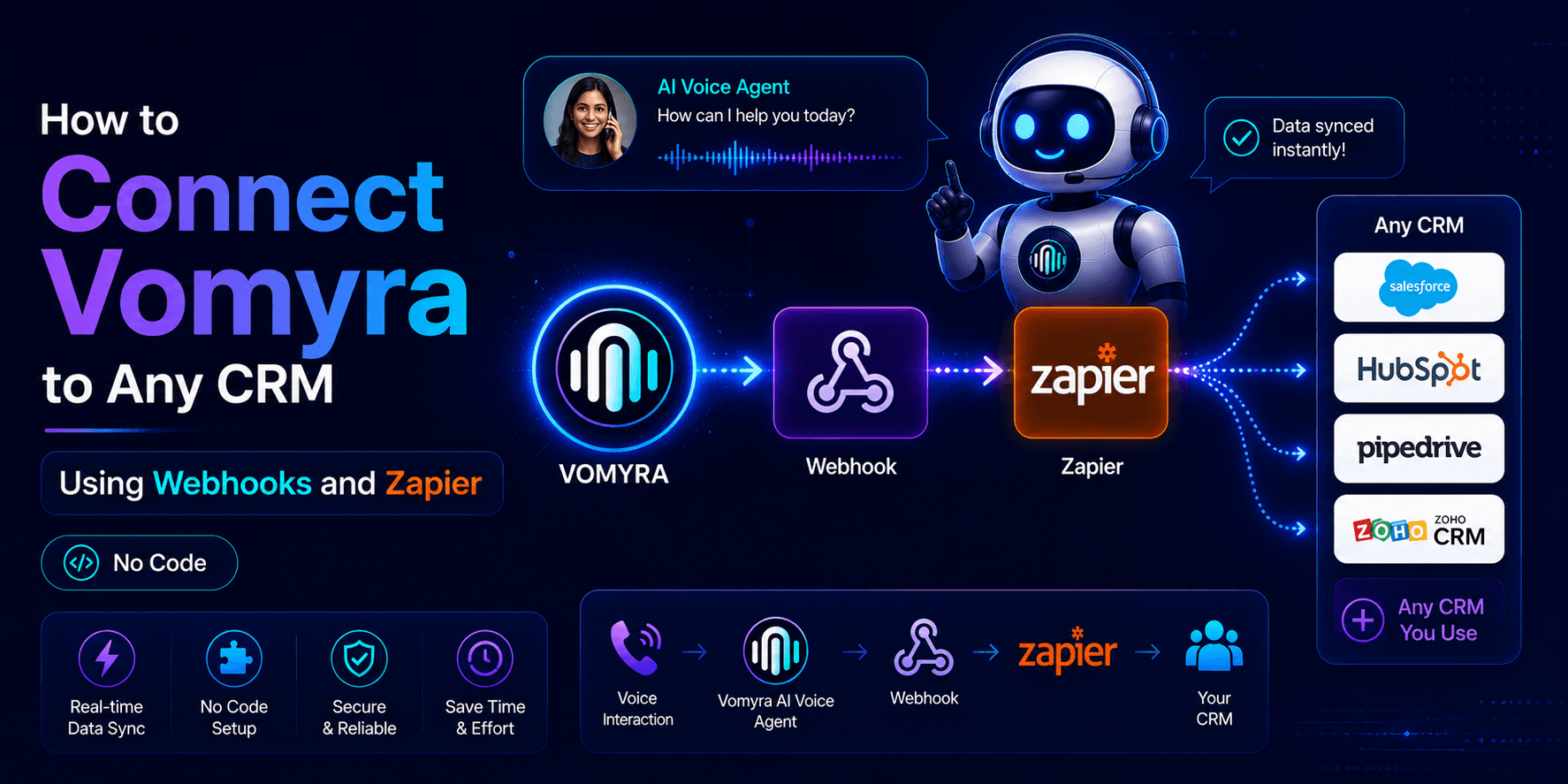
Vomyra AI Voice Agent connects to any CRM through two routes that require zero code: native webhooks that fire structured call data the moment a conversation ends, and Zapier workflows that route that data to over 6,000 apps including Zoho, LeadSquared, Freshsales, HubSpot, Google Sheets, and virtually any other tool an Indian sales team uses.
This guide covers both routes completely, with exact steps for each, so every Vomyra call automatically populates the CRM without anyone typing anything manually.

Understanding the Two Integration Routes
Before choosing a method, it helps to understand what each one is and when to use it.
Route 1: Webhooks (Direct, Instant, No Middleware)
A webhook is an outbound notification that Vomyra fires to a URL you specify the moment a defined event occurs. When a call ends, Vomyra sends a JSON payload containing the call transcript, qualification score, lead data, detected language, and any structured fields the agent collected during the conversation.
The URL receiving this payload can be your CRM’s native webhook endpoint, a Make.com scenario, an n8n workflow, or a Zapier catch hook. Webhooks are the fastest route because there is no polling, no delay, and no intermediary waiting for something to happen. The data arrives in your system within seconds of the call ending.
Use webhooks when your CRM has a native incoming webhook capability, when you want the fastest possible data sync, or when you are comfortable pasting a URL into two places without needing to build any logic around it.
Route 2: Zapier (Visual, Flexible, Connects 6,000-Plus Apps)
Zapier sits between Vomyra and your CRM as a visual automation layer. Vomyra sends call data to a Zapier trigger, and Zapier’s workflow editor lets you map specific fields from the call payload to specific fields in your CRM without touching any code.
The major advantage of Zapier over direct webhooks is the visual field mapping interface. If your CRM uses a custom field called “Lead Source City” and Vomyra’s payload contains “caller.detected.city”, you drag and drop to connect them. You can also add conditional logic, send notifications to Slack, create tasks in ClickUp, or trigger a WhatsApp message, all from the same Zap without additional development.
Use Zapier when your CRM does not have native webhook support, when you need to transform or route data across multiple apps simultaneously, or when a non-technical team member will be managing the integration after setup.
Method 1: Direct Webhook Setup in Vomyra
This method takes under 15 minutes and requires nothing beyond a Vomyra account and your CRM’s webhook endpoint URL.
Step 1: Get Your CRM’s Incoming Webhook URL
Every major CRM that supports webhooks has a section in its settings where you can generate an incoming webhook URL. In Zoho CRM, this is under Setup, then Developer Space, then Functions and Connections. In HubSpot, it is under Settings, then Integrations, then Private Apps or Webhooks depending on your plan. In Freshsales, it is under Admin Settings, then Integrations.
Copy the exact URL the CRM generates. It will look something like https://hooks.zoho.com/crm/v1/… or a platform-specific endpoint. This is the address Vomyra will POST call data to after each conversation.
Step 2: Open Vomyra’s Integration Settings
Log in to your Vomyra AI Voice Agent dashboard and navigate to Settings, then Integrations, then Webhooks. This panel lists all configured webhook endpoints and lets you add new ones.
Step 3: Add the Webhook Endpoint
Click Add Webhook and paste the CRM URL you copied in Step 1. In the event trigger selection, choose the events that should fire this webhook. For most CRM use cases, the two most useful events are:
call.completed fires when any call ends, regardless of outcome. This sends the full transcript, call duration, detected language, agent used, and caller phone number.
lead.qualified fires only when the call produces a qualification score above the threshold you configured in your agent. This keeps the CRM clean by only creating records for leads that passed the qualification criteria.
Select both if you want a complete record of every call, or select only lead.qualified if you want the CRM to receive only actionable leads.
Step 4: Configure the Payload Fields
Vomyra’s webhook payload is a JSON object. By default it contains the following fields that most CRMs want to receive:
The caller’s phone number, the call timestamp, the full conversation transcript, the qualification score between 0 and 100, each qualification question and the caller’s response, the detected language (Hindi, Hinglish, Tamil, Telugu, and so on), the agent configuration ID, and any custom fields your agent collected such as budget range, location, or product interest.
If your CRM requires specific field names rather than the Vomyra defaults, the field mapping section in Vomyra’s webhook configuration lets you rename any output field before it is sent.
Step 5: Test the Webhook
Save the configuration and click Send Test Payload. Vomyra fires a sample JSON object to the CRM URL. Open your CRM and check whether a test record appeared. If it did, the webhook is working. If it did not, the most common cause is a mismatched field format or an authentication header the CRM requires that has not been added yet.
For CRMs that require an API key or bearer token in the request header, add these in the Headers section of the Vomyra webhook configuration before testing.
Method 2: Zapier Integration Setup
This method is recommended for teams connecting Vomyra to LeadSquared, Freshdesk, Google Sheets, Notion, ClickUp, WhatsApp Business, or any platform not on Vomyra’s native integration list.
Step 1: Create a Zapier Account
If you do not already have one, create a free Zapier account at zapier.com. The free tier allows 100 tasks per month, which is sufficient for testing. For production volumes, the Starter plan at approximately Rs 1,500 per month covers 750 tasks, and the Professional plan covers 2,000 tasks.
Step 2: Create a New Zap and Select the Trigger
In Zapier, click Create Zap. In the trigger step, search for Webhooks by Zapier and select Catch Hook. Zapier generates a unique webhook URL for this Zap that looks like https://hooks.zapier.com/hooks/catch/….
Copy this URL. Do not close the Zapier tab yet because you need to keep it active while setting up the Vomyra side.
Step 3: Add the Zapier URL as a Vomyra Webhook
Following the same steps as Method 1, go to Vomyra’s Integrations settings and add the Zapier catch hook URL as a new webhook endpoint. Select your trigger events and save.
Step 4: Trigger a Test Call to Send Sample Data
In Vomyra, click Send Test Payload or make a short test call to your AI voice agent. Within a few seconds, Zapier’s Catch Hook will receive the payload and display it in the trigger step. Click Test Trigger in Zapier to confirm it received the data.
Once Zapier shows the Vomyra payload fields in the trigger output, the connection is live and you can proceed to map the data to your CRM.
Step 5: Add a Zapier Action for Your CRM
Click the plus button below the trigger to add an action step. Search for your CRM name. Zapier has native integrations with Zoho CRM, HubSpot, Freshsales, Pipedrive, Salesforce, LeadSquared, and hundreds of others. Select your CRM and choose the action type, which is typically Create or Update Contact, Create Lead, Log Activity, or Create Deal depending on what the call outcome should produce in your system.
Step 6: Map Vomyra Fields to CRM Fields
This is the core of the Zapier setup. The left side shows your CRM’s fields. The right side shows every field from Vomyra’s webhook payload. Drag or select to map them:
Phone Number from Vomyra maps to Phone in your CRM. Qualification Score maps to Lead Score. The budget response the agent collected maps to a custom field like Estimated Budget. The detected language maps to a tag or segment field. The transcript summary maps to a Notes field or Description.
Map as many or as few fields as your sales process requires. A minimal setup with just phone number, qualification score, and call timestamp is enough to get started. Additional fields can be added later without rebuilding the Zap.
Step 7: Test the Full Zap
Click Test and Review in Zapier. If the CRM receives the test data and creates a record correctly, turn the Zap on. From this point, every Vomyra call that matches your selected trigger events automatically creates or updates a record in your CRM within seconds of the call ending.
Real Workflows Indian Businesses Are Building
Real estate lead qualification. An AI voice agent for real estate India calls back every portal inquiry within 60 seconds. When the call ends, Zapier creates a lead record in Zoho CRM with the prospect’s stated budget, preferred location, and site visit preference. The AE receives a notification in WhatsApp that a pre-qualified lead has arrived, with a link to the CRM record. No manual entry. No delay between qualification and follow-up.
Fintech loan inquiry. An AI voice agent for fintech India qualifies inbound loan inquiries by income, employment type, and loan amount. On call completion, the Vomyra webhook pushes the structured qualification data to LeadSquared, where it enters the relevant lead pipeline stage automatically and triggers an automated email with the loan offer relevant to the caller’s stated profile.
Restaurant order and reservation management. Vomyra answers every inbound call during peak service hours. For table reservation calls, the Zapier workflow creates a Google Sheets row with the reservation details, guest count, and contact number, then triggers a confirmation WhatsApp message through the Zapier WhatsApp integration. The Petpooja AI integration voice connection handles phone orders that route directly into the kitchen system.
Recruitment candidate screening. An AI recruitment calling bot India HR team deploys to screen applicants in Hindi, Telugu, and Bengali. When each call completes, Zapier creates a candidate record in Freshteam with the screening score, availability dates, and role-fit responses, and moves the candidate to the shortlist stage if the qualification score exceeds the configured threshold.
Common Issues and How to Fix Them
Webhook payload not arriving in Zapier. The most common cause is selecting the wrong event in Vomyra. If you selected lead.qualified but the test call was not above the qualification threshold, no payload fires. Either lower the qualification threshold temporarily for testing or use call.completed for the test, then switch back.
CRM creating duplicate records. This happens when the webhook fires for both inbound and outbound calls but the CRM has no deduplication rule. In Zapier, add a Filter step before the CRM action that checks whether the phone number already exists as a contact. If it does, route to an Update Contact action instead of Create Contact.
Field mapping showing blank values. This usually means the field name in Vomyra’s payload does not match what Zapier received during the test. Trigger a fresh test call, click Retest Trigger in Zapier, and remap fields from the fresh payload rather than the original sample.
Language field showing unexpected values. Vomyra’s language detection field uses ISO 639-1 codes: hi for Hindi, ta for Tamil, te for Telugu, mr for Marathi, as for Assamese. If your CRM expects full language names rather than codes, add a Formatter step in Zapier between the trigger and the CRM action to translate these values before they are written.
Getting Started
The fastest way to test both integration methods is to deploy a working Vomyra AI Voice Agent, make three test calls, and watch the data arrive in your CRM. Vomyra AI Voice Agent includes webhook configuration and Zapier connectivity in the free tier, which covers 500 monthly credits that renew every month at no cost.
The integration setup described in this guide typically takes 30 to 60 minutes for a first deployment. After the initial configuration is live, adding new CRM fields or additional destination apps through Zapier takes minutes rather than days.
A free trial of Vomyra AI Voice Agent gives full access to webhook settings, call transcript exports, multilingual support across Hindi, Hinglish, Tamil, Telugu, Marathi, Gujarati, Bengali, Punjabi, and Assamese, and the Indian +91 number infrastructure, before any payment is required.
Frequently Asked Questions
Does connecting Vomyra to a CRM require a developer?
No. Both the direct webhook method and the Zapier method are fully no-code. The webhook setup requires pasting a URL into two places. The Zapier setup requires a visual drag-and-drop field mapping. Neither requires writing or reading any code.
Which CRMs does Vomyra connect to natively versus through Zapier?
Vomyra has direct integrations with Petpooja POS and standard CRM platforms. For CRMs not on the native list, Zapier provides connectivity to over 6,000 apps including Zoho, LeadSquared, Freshsales, HubSpot, Pipedrive, Notion, ClickUp, Google Sheets, and WhatsApp Business.
How long does it take for call data to appear in the CRM after a call ends?
With a direct webhook, data typically arrives within 2 to 5 seconds of the call ending. Through Zapier, the delay is usually under 30 seconds depending on Zapier’s task queue at the time the webhook fires.
Can Vomyra update an existing CRM record rather than creating a new one?
Yes. In the Zapier action step, select Find and Update Contact rather than Create Contact. Zapier will search the CRM for a matching phone number and update the existing record rather than creating a duplicate.
What data does Vomyra send to the CRM after each call?
The default webhook payload includes the caller’s phone number, call timestamp, full conversation transcript, qualification score, each agent question and the caller’s response, detected language, call duration, and agent ID. Custom fields collected during the call, such as budget range or location, are also included in the payload.