Why This Integration Changes Everything
Most AI tools work in isolation. You open a dashboard, configure a campaign, and wait for results. The Vomyra and Claude MCP integration is different. It puts Vomyra AI Voice Agent tools directly inside Claude conversations, so you can initiate calls, review transcripts, manage assistants, and run qualification campaigns by simply talking to Claude in plain language.
A real estate business owner can type “Call all leads from today’s 99acres campaign in Hindi and qualify them by budget” and Claude will use Vomyra tools to do exactly that. An HR team can ask Claude to screen 50 candidates in Telugu and deliver a sorted shortlist. A restaurant manager can have Claude check missed calls and reschedule table reservations through a single conversation.
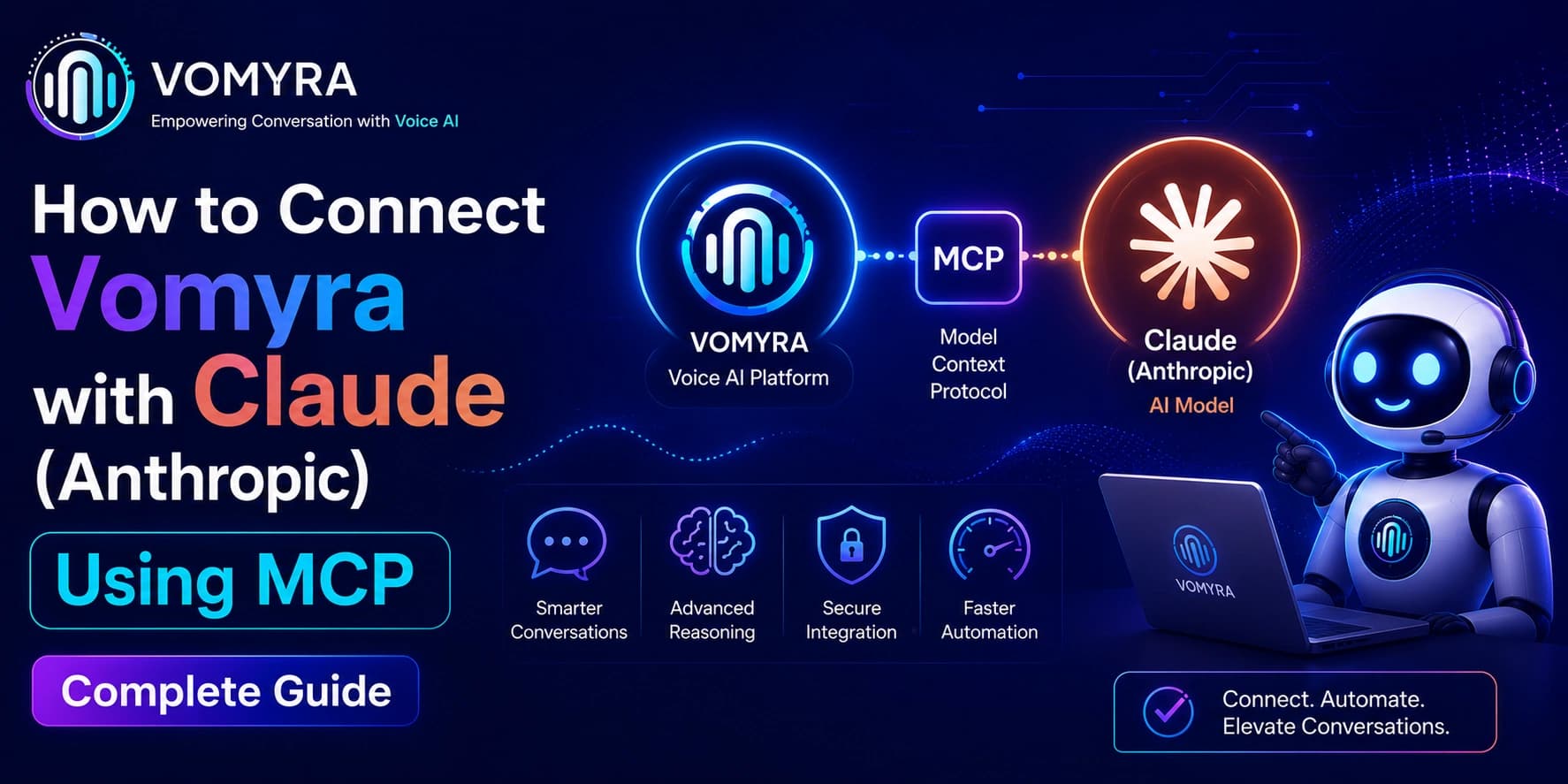
This guide walks through connecting Vomyra AI Voice Agent to Claude using the Model Context Protocol. There are two ways to do it: the no-code Claude.ai connector for non-developers, and the Claude API integration for developers building custom applications. This post covers both, starting with the no-code method.
What Is MCP and Why Does Vomyra Use It
The Model Context Protocol is an open standard created by Anthropic, open-sourced in November 2024, and now governed by the Linux Foundation. It is the universal way for AI models like Claude to connect to external tools, databases, and platforms without custom-coded integrations for each pair.
Vomyra AI Voice Agent implements an MCP server at https://vomyra.com/mcp. When Claude connects to this server, it gains access to 24 Vomyra tools covering every major voice agent action: creating assistants, initiating calls, retrieving transcripts, assigning Indian phone numbers, managing tools, and triggering outbound campaigns.
The result is a voice AI system that speaks through Vomyra but thinks and decides through Claude. Vomyra handles the phone call in Hindi, Hinglish, Tamil, Telugu, Marathi, Gujarati, Bengali, Punjabi, Assamese, or any of the other 30-plus Indian languages it supports. Claude handles the reasoning: which lead to call first, what the qualification outcome means, when to escalate to a human, and how to summarise results for the sales team.
Method 1: No-Code Setup via Claude.ai Connectors
This method works directly inside claude.ai without any developer tools. It takes under five minutes and gives any team member access to Vomyra tools inside Claude conversations.
Step 1: Open Connectors Settings
Go to claude.ai, then navigate to Settings, then Connectors, then select Add custom connector.

The Connectors panel shows all active and available integrations. The Add custom connector option opens a dialog where you paste the Vomyra MCP server URL.
Step 2: Enter the MCP URL
Give the connector a name such as Vomyra AI and paste the following URL into the server address field:

The name you enter here is how Claude will refer to the connector in conversations. Using “Vomyra AI” makes it easy to tell Claude which tool to use when you have multiple connectors active.
Step 3: Sign In with Your Vomyra Account
When prompted, choose OAuth. Sign in through the popup using your Vomyra account credentials and approve the access request. The mcp:tools permission gives Claude access to your Vomyra assistants, tools, calls, and phone numbers. You will be redirected back to Claude automatically after approval.

After authentication, the Vomyra AI connector appears as active in your Connectors panel. You will see 24 tools listed under Other tools, including assign_number_to_assistant, assign_tools_to_assistant, create_assistant, create_tool, delete_assistant, and others.
Step 4: Start Using Vomyra Tools in Claude
The connector is now active in your conversations. Verify it is working by typing:
“List my Vomyra assistants.”

Claude will call the Vomyra MCP server, retrieve your assistant list, and display it in the response. From this point, you can use natural language to control every Vomyra function from inside Claude without opening the Vomyra dashboard at all.
What You Can Do Once Connected
With Vomyra AI Voice Agent connected to Claude through MCP, the following workflows become available through plain language instructions in any Claude conversation.
Create and configure AI voice agents. Ask Claude to create a new assistant for a specific use case, configure its language settings, assign it an Indian +91 number, and set up its qualification script. Claude handles each configuration step using the available Vomyra tools in sequence.
Initiate outbound qualification calls. Give Claude a list of leads with names, phone numbers, and context. Claude uses Vomyra to initiate outbound AI calling India campaigns, applying appropriate language detection based on caller profiles. A prospect with a Tamil Nadu address gets a Tamil-speaking AI lead qualification voice bot. A prospect from Lucknow gets a Hindi AI voice assistant for business. Language assignment happens based on Claude’s reasoning, not manual configuration.
Retrieve and analyse call transcripts. After a campaign runs, ask Claude to pull transcripts, summarise qualification outcomes, identify objections that came up most frequently, and flag which leads need human follow-up. Claude reads the structured transcript data from Vomyra and produces an analysis without you opening a separate analytics dashboard.
Manage AI receptionist India Hindi setups. For businesses running 24-hour inbound coverage, Claude can check which assistants are active, which phone numbers are assigned, and whether any configuration changes are needed, then make those changes directly through the Vomyra tools.
Run appointment booking workflows. For healthcare businesses using AI dental appointment booking India or clinic reminder workflows, Claude can check upcoming appointments, identify gaps, and initiate reminder calls through Vomyra to fill those slots in the patient’s preferred regional language.
Handle restaurant order and reservation management. For restaurants running Petpooja AI integration voice setups, Claude can review the day’s call volume, identify peak missed-call windows, and adjust the Vomyra assistant’s configuration for the following service period.
Support ISP and telecom operations. For voice AI for ISP technical support deployments, Claude can query call logs, identify the most common query types from the previous week, and suggest qualification script improvements based on the pattern data Vomyra captures.
Method 2: Claude API Integration for Developers
For developers building custom applications that combine Vomyra voice capabilities with Claude’s reasoning, the Claude API supports native MCP connections through a beta parameter. This method is covered in detail in the full developer documentation and requires an Anthropic API key with MCP Connector access enabled.
The API method uses the Vomyra MCP server at https://vomyra.com/mcp as a remote server connection, with your Vomyra API key passed as an authorization token. Claude then has access to all 24 Vomyra tools during API calls, enabling automated pipeline orchestration where Claude decides which leads to call, in which language, at what time, and what to do with the qualification outcomes.
For production applications, this approach enables full end-to-end automation: a new lead enters a CRM, Claude is notified through a webhook, Claude evaluates the lead profile, initiates a Vomyra call through MCP in the appropriate language, receives the qualification outcome, updates the CRM record, and schedules a follow-up if needed. The entire flow runs without any human involvement at the routine qualification layer.
The 24 Vomyra Tools Available to Claude
Once the connector is active, Claude has access to the following Vomyra AI Voice Agent tools through MCP. Each tool corresponds to a specific action within the platform.
Assistant management tools. Create assistant, get assistant, list assistants, update assistant, and delete assistant. These tools let Claude set up and manage AI receptionist India Hindi and multilingual AI calling bot configurations without dashboard access.
Tool management tools. Create tool, get tool, list tools, assign tools to assistant, and delete tool. These enable Claude to configure what capabilities each Vomyra assistant has during calls.
Phone number tools. Assign number to assistant, list phone numbers, and get phone number. These manage which Indian +91 numbers are assigned to which assistants for inbound and AI outbound calling India campaigns.
Call tools. Create phone call, get call, list calls, and end call. These initiate, monitor, and conclude outbound voice interactions using Vomyra AI Voice Agent.
File and integration tools. Upload file, get file, delete file, and list files. These manage knowledge base files that Vomyra assistants reference during calls for accurate product and service information.
Language Coverage for Indian Businesses
Every Vomyra tool available to Claude through MCP works across the full range of Indian languages the platform supports. When Claude initiates a call through the create_phone_call tool, the language parameter accepts codes for Hindi, Hinglish, Tamil, Telugu, Marathi, Gujarati, Bengali, Punjabi, Assamese, Kannada, Malayalam, Odia, and English, among others.
For businesses running campaigns across multiple Indian states, Claude can segment a lead list by geography or name pattern and assign appropriate languages before initiating calls. A single Claude instruction handles what would otherwise require separate campaign configurations per language in the Vomyra dashboard.
The Hinglish mode, which handles mid-sentence code-switching between Hindi and English without breaking conversation flow, is available as a language option for urban Indian markets where the majority of business conversations mix the two languages naturally.
Compliance Built In
All calls initiated through the Vomyra MCP integration inherit the platform’s built-in Indian regulatory compliance. TRAI calling-hour enforcement (9 AM to 9 PM IST) applies at the platform level. DND registry scrubbing is applied to outbound campaigns. DPDP Act consent and audit logging is captured automatically for every call.
When Claude uses Vomyra tools through MCP to initiate outbound calls, the compliance layer runs at the Vomyra platform level regardless of what Claude instructs. A call scheduled for 11 PM IST will be held until 9 AM the following morning. A number registered on the DND list will not be called even if it appears in a lead list Claude sends to the Vomyra tool.
Getting Started
The no-code Claude.ai connector setup takes under five minutes. Go to claude.ai, navigate to Settings, then Connectors, add a custom connector with the URL https://vomyra.com/mcp, authenticate with your Vomyra account, and the integration is live.
Vomyra AI Voice Agent starts free with 500 monthly credits that renew every month with no expiry. A free trial covers full MCP access, Indian +91 numbers, 30-plus Indian languages, CRM integration, Petpooja POS connectivity, and call analytics before any payment is required.
Frequently Asked Questions
Do I need a developer to connect Vomyra to Claude?
No. The Claude.ai connector method requires no code. Go to claude.ai, open Connectors settings, add https://vomyra.com/mcp as a custom connector, sign in with OAuth, and the integration is live in under five minutes.
Which Vomyra tools does Claude get access to?
24 tools covering assistant creation and management, tool assignment, phone number management, outbound call initiation, call retrieval, transcript access, and file management for knowledge bases.
Can Claude make calls in Hindi, Tamil, and other Indian languages through Vomyra?
Yes. Language is specified as a parameter when Claude uses the call tools. Hinglish mode, which handles mid-sentence code-switching between Hindi and English, is available for urban Indian markets.
Is the integration compliant with TRAI and DPDP requirements?
Yes. Compliance controls run at the Vomyra platform level. Calling-hour enforcement, DND scrubbing, and DPDP consent logging apply to every call regardless of whether it was initiated through the MCP integration or the Vomyra dashboard directly.
What is the Vomyra MCP server URL?
The server URL is https://vomyra.com/mcp. This is the URL you paste into the Claude.ai custom connector dialog and the URL you reference in API integrations.